




Creating a Professional Document in Minutes with Visual Paradigm’s Markdown Editor
Visual Paradigm's online Markdown Editor lets you write, preview, and export documents in real-time with ease. Perfect for technical writing and blogging.
Want to write a clean, well-structured document without wrestling with complex formatting tools? Visual Paradigm’s online Markdown Editor is the perfect solution for anyone who values efficiency and clarity. This powerful, web-based tool allows you to write, edit, and preview Markdown content in real-time, making it ideal for technical documentation, blog posts, and academic writing. With its intuitive dual-view interface, you can see your formatted output instantly as you type, eliminating guesswork and boosting your productivity. The editor, powered by the robust UI Editor, offers a seamless experience for both beginners and experienced users, ensuring your content is polished and ready for publication.
Key Takeaways
- Visual Paradigm’s Markdown Editor provides a live preview of your content as you write.
- It supports both direct Markdown input and a WYSIWYG editing mode.
- You can import existing Markdown or HTML files and export your work as either .md or .html.
- Features like the example gallery and local file management enhance your workflow.
- The tool is entirely web-based, requiring no account or installation.
What Is the Markdown Editor?
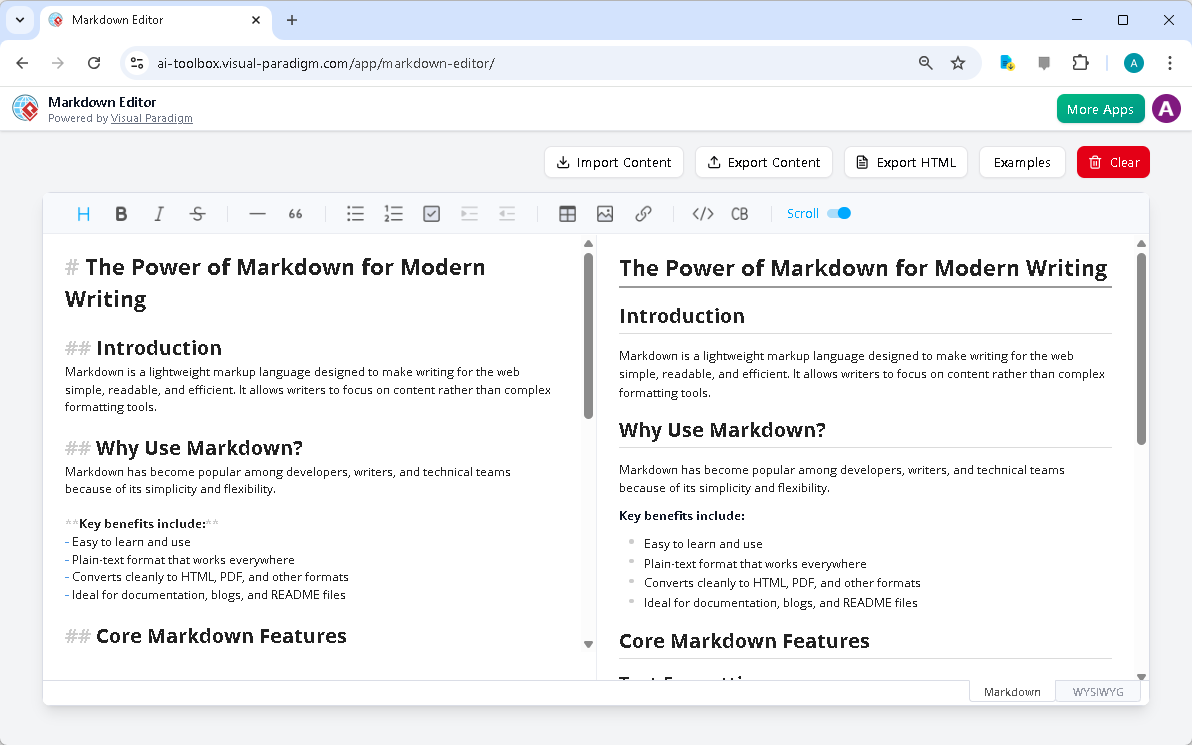
The Markdown Editor from Visual Paradigm is a comprehensive online tool designed to streamline the process of creating formatted content. It features a clean, dual-view interface that splits the screen into two sections: the left side is the Markdown editor where you input your text, and the right side provides a live, rendered preview of the formatted output. This real-time feedback allows you to see exactly how your content will appear without needing to switch between different applications or manually render code.
At the heart of this editor is a powerful UI Editor, which offers a rich set of features for formatting text, including support for headings, lists, links, images, and code blocks. Whether you’re drafting a technical manual, writing a blog post, or preparing a presentation, the editor’s intuitive toolbar makes it easy to apply formatting with minimal effort. The dual-view layout ensures that you can focus on your content while simultaneously seeing how it will look to your audience.
Visual Paradigm’s online Markdown Editor provides a clear, split-screen view for writing and previewing content.
Who Is It For?
Visual Paradigm‘s Markdown Editor is designed for a wide range of users who need to create structured, well-formatted content efficiently. It’s particularly beneficial for technical writers who rely on Markdown for documentation and README files, as it provides a version-control-friendly format that is easy to share and collaborate on. Bloggers and content creators can use it to write articles and tutorials that can be easily published across various platforms, while developers can draft project notes and commit messages with ease.
Students and academics also find value in this tool, as it offers a distraction-free environment for writing papers, reports, and lecture notes. The editor’s simple syntax makes the raw content easy to read and maintain, even before it’s rendered. For anyone who values speed, portability, and a clean writing experience, this editor is an excellent choice.
Key Features and Benefits
Visual Paradigm’s Markdown Editor is packed with features that enhance the writing process. One of its standout features is the live vertical preview, which displays the rendered HTML output of your Markdown content in real-time. This immediate visual feedback helps you catch formatting errors and refine your layout quickly, making the content creation process faster and more efficient.
The editor also supports local file import and export, allowing you to easily bring in existing Markdown or HTML files and export your work as either a .md or .html file. This functionality is especially useful for converting content from one format to another or continuing work on existing documents. The example gallery provides a library of pre-written Markdown examples, offering inspiration and a quick start for new projects.
Another major benefit is the ability to clear your content with a single click, providing a fresh canvas for new ideas. The editor’s local data control ensures that your content remains private until you choose to share it, and the fact that it requires no account or login makes it accessible to everyone. With built-in undo and redo functionality, you can work confidently, knowing you can easily revert any changes.
How to Use the Markdown Editor
Drafting a Technical Document
To draft a technical document, start by opening the editor and begin typing your content using Markdown syntax. Use headings like # My Title and ## My Subtitle for structure, and create bullet points with - List Item 1. Add code blocks with code and links with [text](url). As you write, monitor the live preview to ensure your formatting is correct and the document is easy to read. Once complete, export your work as a Markdown file for easy sharing or version control.
Converting an HTML Article to Markdown
If you need to convert an existing HTML article into Markdown, click the “Import Content” button and select your .html file. The editor will attempt to convert the HTML to a reasonable Markdown representation. Review the converted content in the editor, making any necessary adjustments. Then, export your work as a Markdown file for future editing or publication.
Preparing Content for a Website
To prepare content for a website, write your content in the editor using Markdown. Focus on clear headings, paragraphs, and lists. Add internal or external links as needed. Once complete, click “Export HTML” to generate a clean HTML file that can be directly integrated into your website’s content management system or web pages.
Conclusion
Visual Paradigm’s Markdown Editor is a powerful, user-friendly tool that simplifies the process of creating professional-quality content. Its dual-view interface, live preview, and robust feature set make it an excellent choice for technical writers, bloggers, developers, and students alike. By combining the simplicity of Markdown with the power of a feature-rich editor, it enables you to focus on your content rather than complex formatting tools.
Ready to experience the power of modern writing? Try the Visual Paradigm Markdown Editor today and see how it can transform your content creation workflow.
Related Links
- Markdown Editor – Visual Paradigm AI: Our real-time rendering engine eliminates the guesswork, showing you the final, perfectly formatted HTML output alongside your Markdown source. Focus purely on your content. The editor features a clean, intuitive interface designed to minimize distractions, offering a peaceful and highly efficient writing environment with only the necessary tools visible.
- Real-Time Markdown Editor with Live Preview – Visual Paradigm: The Markdown Editor is a web-based, real-time Markdown editor . It provides a seamless writing experience with live preview, rich formatting tools, and autosave features.
- AI Markdown Presentation Maker | Text to Slides Instantly: Your single source for writing and customizing content using simple Markdown. See all your animations and changes reflected instantly in a live preview. Our built-in Generate Prompt AI doesn’t just fill in the blanks;…
- Creating a Professional AI Presentation in Minutes with Markdown: Transform simple text into dynamic AI-powered presentations using Markdown with the AI Markdown Presentation Maker from Visual Paradigm .
- Guide to Visual Paradigm’s AI Markdown Presentation Maker: Learn how to create professional, animated presentations in seconds using Visual Paradigm ‘s AI Markdown tool. A step-by-step guide on generating, editing, and exporting HTML slides.
- Introducing Our New Free Markdown Editor – Visual Paradigm …: Streamline your writing with Visual Paradigm ‘s new free markdown editor . Enjoy real-time preview, easy formatting, and seamless integration.
Related posts:
 Building a Data-Rich Project Roadmap: AI-Powered Table Generation to JSON Export
 Creating a SaaS Product Website in Minutes with AI-Powered Page Editor
 Creating a Beautiful Illustrated Story in Minutes with AI-Powered Flipbook Maker Lite
 Creating a Personal UX Portfolio in Minutes with AI-Powered Site Builder